


Introduction – Why This Matters
In my experience, when beginners hear the term “technical SEO,” their eyes glaze over. They imagine complex coding, server configurations, and a language spoken only by developers. What I’ve found is that this fear of the unknown is the biggest barrier to mastering SEO. People pour their hearts into writing great content, spend hours on meticulous keyword research, and carefully follow an on-page SEO checklist—only to wonder why their pages still aren’t ranking. The invisible culprit is often technical SEO.
Think of it this way: you’ve built a beautiful, well-organized store in a fantastic location. You’ve stocked it with exactly what your customers want, and you’ve put up clear, enticing signs. But if the front door is locked, the lights are off, and your aisles are impossible to navigate, no one can get in to buy anything. Technical SEO is the work of unlocking that door, turning on the lights, and making sure the layout is easy to explore. It’s the invisible foundation that makes all your other SEO fundamentals work.
Here’s a reality check based on 2025 data: 53% of mobile users abandon a page that takes longer than three seconds to load. That’s more than half of your potential visitors gone before they’ve even seen your content. But technical SEO isn’t just about speed. It’s about ensuring that search engines can even find your pages in the first place. If Googlebot can’t crawl and index your site, it’s as if your beautiful store exists in a parallel universe—invisible to the world.
In this guide, we’re going to demystify technical SEO. We’ll walk through exactly what it is, why it matters in 2026, and most importantly, how you can fix the most common issues yourself, without needing to be a developer. By the end, you’ll have a clear checklist to audit your own site and ensure it has a rock-solid technical foundation.
Background / Context
To understand technical SEO, we need to look at how search engines interact with websites. Search engines like Google use automated programs called “bots” or “spiders” to discover and analyze web pages. This process, called crawling, is how they find new and updated content. They follow links from one page to another, building a map of the internet.
Once a bot finds a page, it processes the content and stores it in a massive database called the index. This is Google’s library of every webpage it knows about. When you perform a search, Google doesn’t scan the live web; it scans its index to find the most relevant results.
Technical SEO is the practice of optimizing your website’s infrastructure to make this crawling and indexing process as easy and efficient as possible. In the early 2000s, this was relatively simple. Websites were smaller, and search engine algorithms were less sophisticated. But as the web exploded in size and complexity, Google had to become more efficient. It introduced concepts like crawl budget—the amount of time and resources Googlebot will spend crawling your site. If your site is full of technical issues, you waste that budget, and important new pages might not get discovered or indexed.
Today, in 2026, technical SEO is more critical than ever. With the rise of Core Web Vitals as ranking factors, Google explicitly measures and rewards sites that provide a smooth, stable, and fast user experience. Furthermore, as search becomes more fragmented and AI-driven, a technically sound website signals reliability and authority. If an AI agent like Google’s Gemini or ChatGPT is synthesizing an answer, it’s more likely to pull information from a site that is well-structured, fast, and secure.
Key Concepts Defined
Before we dive into the checklist, let’s define the key terms you’ll encounter. This vocabulary will be your toolkit for understanding and fixing technical issues.
- Crawling: The process by which search engine bots (like Googlebot) discover new and updated web pages by following links.
- Indexing: The process of storing and organizing the content found during crawling. If a page is not in the index, it cannot appear in search results.
- Crawl Budget: The number of pages a search engine will crawl on your site within a given timeframe. Optimizing your site helps search engines use this budget efficiently on your most important pages.
- Robots.txt: A text file (found at yourdomain.com/robots.txt) that tells search engine bots which parts of your site they are allowed and not allowed to crawl. It’s like giving the bots a map with “no entry” signs.
- XML Sitemap: A file that lists all the important pages on your website. You submit it to search engines (like Google Search Console) to help them discover your content more effectively. It’s like giving the bots a priority list of pages to visit.
- Canonical Tag (rel=”canonical”): A piece of HTML code that tells search engines which version of a page is the “master” or preferred version. This is crucial for solving duplicate content issues, where the same content appears on multiple URLs.
- Page Speed / Core Web Vitals: A set of specific factors that Google considers important for user experience. They measure loading performance (Largest Contentful Paint – LCP), interactivity (Interaction to Next Paint – INP), and visual stability (Cumulative Layout Shift – CLS).
- Mobile-First Indexing: Google’s practice of using the mobile version of a website for indexing and ranking. If your site isn’t mobile-friendly, it will struggle to rank, period.
- Structured Data (Schema Markup): A code added to your website to help search engines understand your content better. It can enable rich results in search, like star ratings, product prices, or event details.
- HTTPS/SSL: The secure version of HTTP. It encrypts data between a user’s browser and your website. Google uses HTTPS as a ranking signal and marks non-HTTPS sites as “Not Secure” in browsers, hurting user trust.
- Broken Links (404 Errors): Links that point to pages that no longer exist. They create a poor user experience and waste crawl budget.
- Redirects (301): A way to send users and search engines from one URL to a different one. A 301 redirect is a permanent redirect, telling search engines that the page has moved for good and to pass most of the ranking power (link equity) to the new URL.
- Hreflang: An HTML attribute used to specify the language and geographical targeting of a webpage. It’s essential for multilingual or multi-regional websites to show the correct version to users in different locations.
How It Works (Step-by-Step Breakdown)
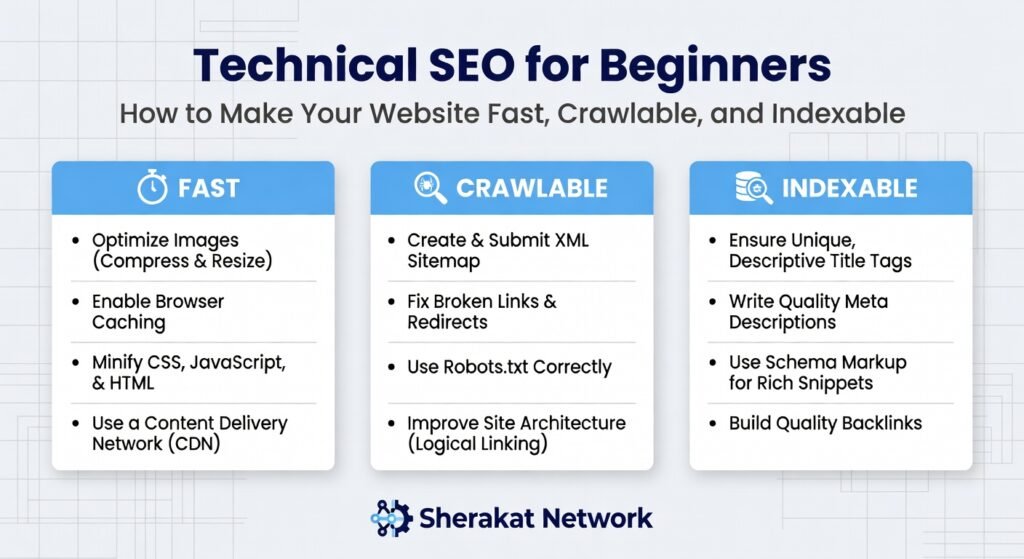
Let’s walk through the key areas of technical SEO in a logical order. Think of this as your site health check-up.
Step 1: Ensure Search Engines Can Crawl Your Site
The first step is making sure you haven’t accidentally locked the door. This involves checking two main areas: your robots.txt file and your site’s login requirements.
Check your robots.txt file:
Go to yourdomain.com/robots.txt. You should see a file. If you get a “404 Not Found” error, that’s fine—it just means you don’t have one, and bots are allowed to crawl everything by default. If you do have one, you need to ensure it’s not accidentally blocking important pages. Look for lines like:Disallow: /
orDisallow: /wp-admin/ (blocking your admin area is good!)Disallow: /cart/ (blocking shopping cart pages is also good!)
You want to make sure you’re not disallowing important content pages, blog posts, or your homepage. A common mistake is accidentally blocking all search engines after a site migration or while a site is “under construction” and then forgetting to remove the block.
Check for login walls:
If your entire site requires a login to view any content, search engines can’t see it. This is rare for public websites but common for membership sites, forums, or intranets. If you have content you want indexed, it must be publicly accessible without login.
Step 2: Help Search Engines Find Your Best Content with an XML Sitemap
An XML sitemap is like a guest list for a party. It tells the search engine bots, “Here are all the important pages we want you to see.”
How to create and submit one:
- If you’re using a CMS like WordPress with an SEO plugin (like Yoast SEO or Rank Math), they generate a sitemap automatically.
- The sitemap is usually found at yourdomain.com/sitemap.xml or yourdomain.com/sitemap_index.xml.
- You then submit this sitemap to Google (and other search engines) via Google Search Console. This is a free tool that is absolutely essential for any website owner.
- In Google Search Console, go to the “Sitemaps” section, paste your sitemap URL, and click submit. This directly tells Google about your pages and when you update them.
Step 3: Fix Indexing Issues with Canonical Tags
Duplicate content is a common technical SEO problem. It happens when the same content is accessible via multiple URLs. For example:
https://yoursite.com/blog/posthttps://yoursite.com/blog/post?utm_source=facebookhttps://www.yoursite.com/blog/post
This confuses search engines. Which version should they rank? The solution is the canonical tag. It’s a line of code in your page’s <head> section that looks like this:<link rel="canonical" href="https://yoursite.com/blog/post" />
This tells search engines, “The master version of this content is at this URL. Please consolidate all ranking signals to that one.” Most good CMS platforms and SEO plugins add canonical tags automatically, but it’s worth checking your page source to ensure they’re there and pointing to the correct URL.
Step 4: Optimize for Mobile-First Indexing
Google primarily uses the mobile version of your site for ranking. If your mobile site is slow, has tiny text, or buttons that are too close together, you will be penalized.
How to check your mobile-friendliness:
- Use Google’s Mobile-Friendly Test tool. Just enter your URL, and it will tell you if your page is mobile-friendly and highlight any issues.
- In Google Search Console, look at the “Mobile Usability” report. It will list any pages with specific mobile issues, like text too small to read or clickable elements too close together.
- The fix often involves using a responsive design, which means your site automatically adjusts to fit any screen size. Most modern themes are responsive by default.
Step 5: Master Page Speed and Core Web Vitals
Page speed is a direct ranking factor, and it’s crucial for user experience. Google’s Core Web Vitals are a set of specific speed and stability metrics.
The three Core Web Vitals are:
- Largest Contentful Paint (LCP): Measures loading performance. It marks the point when the main content of a page has likely loaded. You want this to happen within 2.5 seconds of the page first starting to load.
- Interaction to Next Paint (INP): Measures interactivity. It assesses a page’s overall responsiveness to user clicks, taps, and keyboard interactions. You want this to be under 200 milliseconds.
- Cumulative Layout Shift (CLS): Measures visual stability. It quantifies how much the page content shifts around unexpectedly while loading. You want a score of less than 0.1. (Imagine trying to click a button, and it suddenly moves—that’s a poor CLS.)
How to check and improve them:
- Use tools like Google PageSpeed Insights or GTmetrix. Enter your URL, and they’ll give you a score for mobile and desktop, along with specific recommendations on how to fix issues.
- Common fixes include:
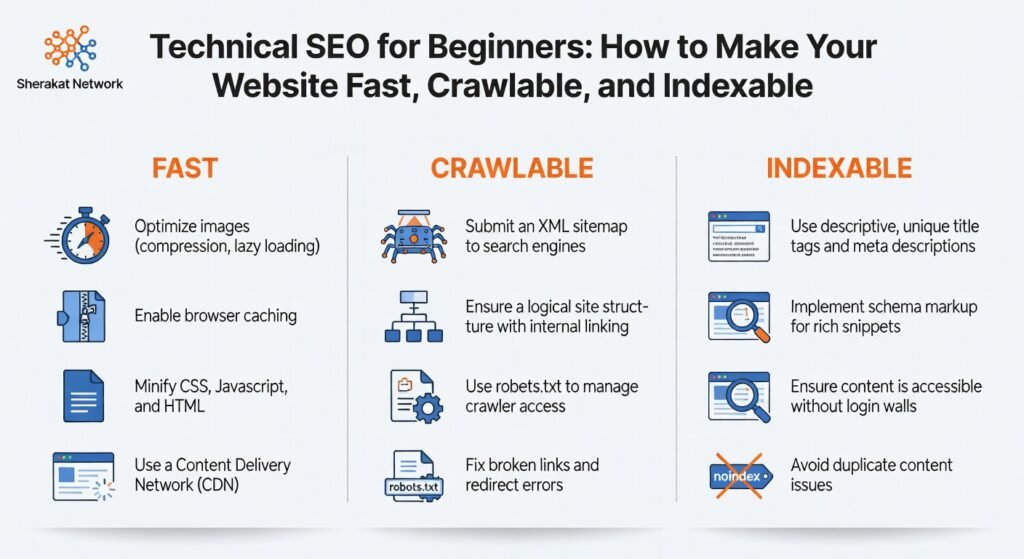
- Optimizing images: Compress them using tools like TinyPNG or ShortPixel before uploading.
- Minifying CSS and JavaScript: This means removing unnecessary characters (like spaces and comments) from your code to make files smaller. Many caching plugins do this automatically.
- Leveraging browser caching: Telling browsers to store certain files locally so they don’t have to download them every time a user visits.
- Using a Content Delivery Network (CDN): A CDN stores copies of your site on servers around the world, so users download it from a server close to them, which is much faster.
Step 6: Ensure Your Site is Secure with HTTPS
If you see “Not Secure” in your browser’s address bar, you have a problem. HTTPS encrypts the connection between your user and your server, protecting their data. Google has used HTTPS as a ranking signal for years, and modern browsers actively warn users against non-HTTPS sites.
How to fix it:
- You need an SSL certificate. Many web hosts include this for free. Once installed, you need to ensure your site is configured to always use the
https://version. This often involves setting up a redirect so anyone who typeshttp://is automatically sent to the secure version.
Step 7: Fix Broken Links (404 Errors)
Broken links (links that lead to a “404 Page Not Found” error) create a bad user experience and waste crawl budget. Search engines follow these links and hit a dead end, which isn’t efficient.
How to find and fix them:
- In Google Search Console, go to the “Pages” report under “Indexing.” It will show you pages Google has found that return a 404 error.
- You can also use crawling tools like Screaming Frog (free for up to 500 URLs) to audit your entire site for broken links.
- Once you find them, you have two options:
- If the page has a new URL, set up a 301 redirect from the old broken URL to the new one.
- If the page is gone for good and there’s no replacement, you can do nothing, but it’s often better to redirect it to a relevant, related page.
Step 8: Implement Structured Data (Schema Markup)
Structured data is a way of labeling your content so search engines understand it with certainty. It’s like adding a nutrition label to a food product.
How to implement it:
- There are many different types of schema for different content: Articles, Products, Events, Recipes, FAQs, Reviews, and more.
- If you use an SEO plugin like Yoast or Rank Math, they can often add basic schema (like Article or Organization schema) automatically.
- For more advanced schema (like FAQ or How-to), you can use Google’s Markup Helper tool to generate the code, or use plugins specifically designed for it.
- You can then test your markup using Google’s Rich Results Test tool to ensure it’s implemented correctly. If done right, your search result listings can be enhanced with star ratings, images, and other eye-catching elements.
Why It’s Important
Technical SEO is the bedrock upon which all your other efforts are built. Without it, your content is like a beautifully written letter that never gets mailed.
- It Enables Discovery: The most fundamental reason. If search engines can’t crawl and index your site, your pages simply don’t exist in their database. All your keyword research and on-page optimization are for nothing.
- It Directly Impacts User Experience: A slow, broken, or confusing site frustrates users. And Google knows this. Metrics like Core Web Vitals are designed to measure this frustration. A good technical foundation means happy users, which leads to better engagement, lower bounce rates, and ultimately, higher rankings.
- It Maximizes Your Crawl Budget: For large sites, this is critical. By fixing broken links, removing duplicate content, and optimizing your site structure, you ensure that search engine bots spend their limited time on your site finding and indexing your most important pages, not wasting it on error pages or low-value URLs.
- It Builds Trust and Authority: A secure (HTTPS), fast, and well-structured site signals professionalism and reliability. This aligns perfectly with Google’s E-E-A-T framework. A site that looks spammy or performs poorly is unlikely to be considered a trustworthy source of information.
Sustainability in the Future
Technical SEO is not a one-time fix; it’s an ongoing practice. As technology evolves, so do the requirements for a well-optimized site.
- The Ever-Growing Importance of Core Web Vitals: Google has stated that page experience signals will only become more important. As web technology advances, user expectations for speed and smoothness will continue to rise. Staying on top of these metrics is a long-term commitment.
- AI and Crawling Efficiency: As AI models become more sophisticated, they will likely become even more efficient at crawling. However, this also means they may become more discerning, prioritizing sites that are technically clean and well-structured. A site cluttered with technical errors may be deprioritized.
- The Shift to Mobile and Beyond: With mobile-first indexing already the standard, the next frontier could be wearable tech, voice assistants, and other devices. A technically sound, responsive site that serves content efficiently across all platforms will be future-proof.
- Structured Data for the Semantic Web: As search engines move towards a deeper understanding of entities and relationships, structured data will become increasingly important. It’s the language we use to explicitly tell machines what our content means, making it more likely to be used in AI-generated answers and rich search experiences.
Common Misconceptions
Let’s clear up some myths that often scare beginners away from technical SEO.
- Myth: “Technical SEO is only for developers.”
- Reality: While some advanced server-level tweaks require a developer, the vast majority of technical SEO fixes—checking robots.txt, submitting a sitemap, fixing 404s, optimizing images for speed, and using an SEO plugin for canonical tags—can be done by anyone willing to learn. It’s more about process than programming.
- Myth: “A faster site is the only thing that matters.”
- Reality: Speed is crucial, but it’s one piece of the puzzle. If your site is lightning-fast but blocks Googlebot with a faulty robots.txt file, it still won’t get indexed. Technical SEO is a holistic set of practices.
- Myth: “If I use a good CMS, I don’t need to worry about technical SEO.”
- Reality: A good CMS like WordPress provides an excellent foundation and automates many tasks (like generating sitemaps and canonical tags via plugins). However, it doesn’t automatically fix issues like slow hosting, unoptimized images, broken links from deleted pages, or poorly written redirects. The responsibility still lies with the site owner.
- Myth: “I need to fix every single technical issue immediately.”
- Reality: Focus on the critical issues first. A site that can’t be crawled or has major mobile usability problems is a top priority. A few minor, low-priority warnings from a site audit tool can be tackled over time. Don’t let perfectionism paralyze you.
Recent Developments
Technical SEO in 2026 is shaped by a few key trends.
- INP Replaces FID: In March 2024, Google officially replaced First Input Delay (FID) with Interaction to Next Paint (INP) as a Core Web Vital. INP is a more comprehensive measure of a page’s overall responsiveness to all user interactions, not just the first one. This shift emphasizes the importance of smooth, lag-free interaction throughout a user’s visit.
- AI-Powered Site Audits: Tools like Semrush, Ahrefs, and even Google Search Console are increasingly using AI to not just identify technical issues but also to prioritize them and suggest specific, actionable fixes based on your site’s structure and goals.
- The Continued Rise of HTTPS Everywhere: There is no excuse for a non-HTTPS site in 2026. Browsers are increasingly aggressive in warning users, and the security benefits are non-negotiable for user trust and data protection.
- JavaScript SEO Maturity: As more sites are built with complex JavaScript frameworks (like React, Angular, or Vue.js), ensuring that Google can properly render and index this content remains a key technical challenge. Best practices around server-side rendering (SSR) or dynamic rendering are now well-established but require careful implementation.
Success Stories
The E-commerce Site That Doubled Its Traffic by Fixing Speed
A few years ago, I worked with an online store that sold handmade crafts. They had beautiful product photos and great descriptions, but their site was painfully slow. Images weren’t compressed, their hosting was cheap shared hosting, and their code was bloated.
We ran a PageSpeed Insights test and got a mobile score of 32/100—abysmal. The recommendations were clear: compress images, leverage browser caching, and minify CSS/JavaScript. We spent a weekend implementing these fixes with free tools and a better caching plugin. Within a month, their PageSpeed score jumped to 85/100. More importantly, their organic traffic increased by 110% over the next three months. Google could now crawl their site efficiently, and users stayed to browse instead of bouncing. They didn’t change a single word of their product descriptions; they just made their site technically sound.
The Blog That Was Invisible to Google
A blogger reached out, frustrated that none of her new posts were getting indexed. She had been writing consistently for six months, following on-page best practices, but her traffic was flat.
We checked Google Search Console and saw a massive spike in “Excluded by ‘noindex’ tag” errors. It turned out that when she had updated her SEO plugin months ago, a setting had accidentally been toggled, adding a “noindex” tag to all new posts. This tiny technical tag was telling Google, “Do not include this page in your index.” The fix took 30 seconds once we identified the problem. Within two weeks, dozens of her posts were indexed, and her traffic finally started to grow. This story perfectly illustrates how a single, invisible technical issue can completely nullify all your other content efforts.
Real-Life Examples
Example 1: The Duplicate Content Problem
Scenario: A small business website has its blog accessible via two URLs: https://example.com/blog/post and https://example.com/index.php/blog/post. The CMS is generating both versions.
The Technical SEO Issue: Search engines see two separate pages with identical content. This dilutes link equity (backlinks might be split between the two URLs) and confuses Google about which version to rank.
The Fix: Implement a rel="canonical" tag on the duplicate page (/index.php/ version) pointing to the preferred URL (/blog/post). Even better, fix the CMS settings to only generate one version of the URL.
Example 2: The Mobile Usability Disaster
Scenario: A restaurant’s website looks great on a desktop computer. But on a mobile phone, the menu is tiny and unreadable, and the “Reserve a Table” button is so small that users keep tapping the wrong link.
The Technical SEO Issue: Google’s mobile-first indexing means it’s judging the site based on this terrible mobile experience. Users are frustrated and leave. The site’s rankings plummet.
The Fix: Implement a responsive design theme. Ensure font sizes are legible on small screens and that buttons have enough padding and space around them to be easily tappable. Test the fix using Google’s Mobile-Friendly Test.
Example 3: The Slow-Loading Homepage
Scenario: A portfolio site has a huge, high-resolution video autoplaying in the background of its homepage. The video file is 50MB.
The Technical SEO Issue: The LCP (Largest Contentful Paint) is over 10 seconds on mobile. Users on cellular data give up and leave before the page even finishes loading. Google sees this poor user experience and ranks the site lower.
The Fix: Compress the video drastically or, better yet, replace the autoplaying video with a static, optimized hero image. If the video is essential, use a video hosting service like YouTube or Vimeo and embed it, which is much more efficient than self-hosting large video files.
Conclusion and Key Takeaways
Technical SEO might seem intimidating at first, but it’s essentially a set of housekeeping tasks that ensure your website is healthy, accessible, and fast. It’s the foundation that allows your content and keywords to shine.
Key Takeaways:
- Foundation First: Before worrying about backlinks or the perfect meta description, ensure search engines can crawl and index your site. Check your robots.txt and submit an XML sitemap.
- Speed is a Ranking Factor: Core Web Vitals (LCP, INP, CLS) directly impact your user experience and rankings. Use tools like PageSpeed Insights to identify and fix speed issues, starting with image optimization.
- Mobile is Mandatory: With mobile-first indexing, your site must perform flawlessly on smartphones. Test for mobile usability and use a responsive design.
- Security Builds Trust: HTTPS is non-negotiable. It’s a ranking signal and essential for user trust.
- Fix the Broken Stuff: Regularly check for and fix 404 errors and broken links. They waste crawl budget and annoy users.
- Use Structured Data: Help search engines understand your content by implementing relevant schema markup for richer search results.
Remember, you don’t need to become a developer to master technical SEO. Start with the basics: check your site in Google Search Console, run a PageSpeed Insights test, and ensure your site is mobile-friendly. These few steps will put you ahead of a huge number of websites that neglect this critical foundation. By building on the SEO fundamentals, targeting the right terms with keyword research, and optimizing your content perfectly with your on-page checklist, a technically sound website is the final piece that makes everything else work.
FAQs (Frequently Asked Questions)
1. What is technical SEO in simple terms?
Technical SEO is the practice of optimizing your website’s infrastructure so that search engines can easily find, crawl, understand, and index your pages. It’s about the backend and server aspects of your site, not the content itself.
2. Is technical SEO hard to learn?
No. While some advanced aspects require developer knowledge, the fundamentals—checking robots.txt, submitting a sitemap, fixing 404 errors, and improving site speed with image compression—are accessible to any motivated beginner.
3. What’s the difference between technical SEO and on-page SEO?
On-page SEO focuses on the content and HTML elements of a page (like title tags and headings) to make it relevant for keywords. Technical SEO focuses on the website’s infrastructure (like site speed, crawlability, and indexation) to ensure the site functions correctly.
4. What is Google Search Console and why do I need it?
Google Search Console (GSC) is a free tool from Google that helps you monitor and maintain your site’s presence in search results. It shows you indexing status, search traffic, technical errors, and lets you submit sitemaps. It is absolutely essential for technical SEO.
5. What is a robots.txt file?
It’s a file that tells search engine crawlers which parts of your website they are allowed and not allowed to visit. It’s used to prevent them from crawling unimportant or private sections, saving your crawl budget.
6. What is an XML sitemap?
It’s a file that lists all the important URLs on your website. You submit it to search engines (via GSC) to help them discover and index your content more efficiently.
7. What is a 404 error?
It’s an HTTP status code meaning “Page Not Found.” It occurs when a user or search engine tries to access a URL that doesn’t exist on your server.
8. How do I find and fix 404 errors on my site?
You can find them in Google Search Console under the “Pages” report in the “Indexing” section. You can also use crawling tools like Screaming Frog. To fix them, set up a 301 redirect from the broken URL to a relevant, working page on your site.
9. What is a 301 redirect?
A 301 redirect is a permanent redirect from one URL to another. It tells browsers and search engines that the page has moved for good and passes most of the ranking value (link equity) from the old URL to the new one.
10. What is a canonical tag and why is it important?
A canonical tag (rel="canonical") is a piece of HTML that tells search engines which version of a URL is the master copy. It’s crucial for solving duplicate content issues, where the same content appears on multiple URLs.
11. What are Core Web Vitals?
They are a set of specific metrics from Google that measure user experience in terms of loading performance (LCP), interactivity (INP), and visual stability (CLS). They are ranking factors.
12. What is LCP (Largest Contentful Paint)?
LCP measures loading performance. It marks the point in the page load timeline when the largest image or text block is visible to the user. You want this to happen within 2.5 seconds.
13. What is INP (Interaction to Next Paint)?
INP measures a page’s overall responsiveness to user interactions (clicks, taps, keyboard presses). It aims to be under 200 milliseconds for a smooth experience.
14. What is CLS (Cumulative Layout Shift)?
CLS measures visual stability. It quantifies how much the page content shifts around unexpectedly while loading. A low score (under 0.1) means the page is stable and elements don’t jump around.
15. How can I check my site’s Core Web Vitals?
You can use free tools like Google PageSpeed Insights, GTmetrix, or the Core Web Vitals report in Google Search Console.
16. What is mobile-first indexing?
It means Google primarily uses the mobile version of a website’s content for indexing and ranking. If your site isn’t mobile-friendly, it will likely rank poorly.
17. How do I know if my site is mobile-friendly?
Use Google’s Mobile-Friendly Test tool. Just enter your URL, and it will analyze the page and tell you if there are any mobile usability issues.
18. What is HTTPS and why do I need it?
HTTPS is the secure version of HTTP. It encrypts data transferred between a user’s browser and your website. It’s a ranking signal and builds user trust. Without it, browsers may mark your site as “Not Secure.”
19. How do I get an SSL certificate for my site?
Most modern web hosting providers include a free SSL certificate (like Let’s Encrypt) in their plans. You can usually enable it with a single click in your hosting control panel.
20. What is structured data (schema markup)?
It’s a code added to your website to help search engines understand your content better. It can lead to enhanced search results, called rich results, which can include stars, images, and other details.
21. How do I add structured data to my site?
For beginners, the easiest way is to use an SEO plugin (like Yoast or Rank Math) that can add basic schema automatically. For more advanced schema, you can use Google’s Markup Helper or dedicated schema plugins.
22. What is crawl budget?
It’s the number of pages a search engine will crawl on your site within a specific time frame. Technical SEO helps you use this budget efficiently so your most important pages are crawled and indexed.
23. What things waste crawl budget?
Broken links (404s), server errors (5xx), redirect chains, duplicate content, and low-value or thin pages all waste crawl budget.
24. What is the difference between crawling and indexing?
Crawling is the discovery process—search engine bots finding your pages. Indexing is the storage process—adding those discovered pages to Google’s database (the index) so they can be shown in search results.
25. I use WordPress. Do I still need to worry about technical SEO?
Yes. While WordPress provides a great foundation, you are still responsible for choosing a fast theme, optimizing images, using a good caching plugin, managing redirects, fixing broken links, and ensuring your security. Your SEO plugin helps, but it’s not a complete substitute for good site management.
About Author
Sana Ullah Kakar is a seasoned digital marketing strategist and SEO consultant with over a decade of experience helping businesses establish and scale their online presence. As the lead content contributor for the Sherakat Network, Sana specializes in translating complex digital marketing concepts into actionable strategies for entrepreneurs and professionals across the Middle East and beyond. His approach is rooted in data-driven decision-making and a deep understanding of how evolving search technologies impact real-world business growth. When he’s not analyzing search trends or mentoring the next generation of marketers, Sana is exploring the intersection of technology and human behavior to build more authentic and effective online experiences.
Free Resources
To help you implement everything we’ve covered, here are valuable free resources:
- Google Search Console: Monitor your site’s health, submit sitemaps, and see how Google views your site. (https://search.google.com/search-console/)
- Google PageSpeed Insights: Analyze your site’s speed and Core Web Vitals with specific fix recommendations. (https://pagespeed.web.dev/)
- Google’s Mobile-Friendly Test: Check if your pages are usable on mobile devices. (https://search.google.com/test/mobile-friendly)
- Google’s Rich Results Test: Test your structured data implementation. (https://search.google.com/test/rich-results)
- Screaming Frog SEO Spider: A powerful desktop tool that crawls your website to find broken links, analyze page titles, and more. (Free for up to 500 URLs.)
- GTmetrix: Another excellent tool for analyzing page speed and performance. (https://gtmetrix.com/)
- TinyPNG / ShortPixel: Tools for compressing images without losing quality.
- Ahrefs Webmaster Tools: A free suite of tools that includes a site audit feature to check for common technical issues.
For more in-depth resources, explore the Sherakat Network:
- Browse our Resources page for tools and templates
- Read the latest insights on our Blog
- Learn how to Start an Online Business in 2026
- Explore more SEO articles
- Understand Business Partnership Models
Expand your knowledge with these external resources:
- Mental Health: The Complete Guide to Psychological Wellbeing
- Global Supply Chain Management: The Complete Guide
- Artificial Intelligence & Machine Learning
- Remote Work Productivity
- Climate Policy & Agreements
- Culture & Society
Discussion
Now I’d love to hear from you. What part of technical SEO has been the most confusing or challenging for you? Have you checked your site’s Core Web Vitals or run it through Google’s Mobile-Friendly Test? What were the results?
Share your experiences and questions in the comments below. Let’s learn from each other’s journeys in demystifying the technical side of SEO. If you have a specific issue you’re facing with your site, describe it—someone in the community might have a solution.
If you need personalized help with your technical SEO, don’t hesitate to contact us. We’re here to help you succeed.
thank your for this article, keep up the good work
It’s so refreshing to see a blog that breaks down technical SEO for beginners! The fear of coding is real, but once you understand the importance of site speed and crawling, it all starts to make sense. I think focusing on these core aspects first makes SEO much more approachable for everyone.
Thanks for breaking down technical SEO in such a beginner-friendly way—especially the part about site speed and crawlability. I’ve noticed that even small optimizations like compressing images or fixing broken links can make a big difference in how search engines interact with a site. It’s easy to overlook these fundamentals, but they truly lay the groundwork for better visibility.
I love the way you framed this—it’s so true that many people freeze up at the term ‘technical SEO’ without realizing it’s really just about clearing the path for search engines. Do you have a favorite starting point for a beginner who wants to perform an initial audit of their site’s health without getting completely overwhelmed by the data?
I like the valuable information you provide in your articles. I will bookmark your weblog and check again here regularly. I am quite certain I’ll learn many new stuff right here! Good luck for the next!